That's it, you now have a well-connected Lightning node, with both inbound and outbound liquidity. So you're all set to use your Lightning node in real life. Up to now, we've always used interfaces directly on Umbrel, either the Lightning Node application or the ThunderHub interface. These tools work for sending and receiving payments, but are clearly not optimized for everyday Lightning payments. The interface is designed for use on a computer, impractical on a smartphone, and also requires a connection to the same network to function properly (although it is technically possible to connect remotely via Tor).
In practice, what we're looking for as bitcoiners is a classic Lightning wallet interface on a smartphone: the ability to scan invoices via QR code, and a simple interface for paying and cashing out sats. This is precisely what we'll be implementing in this chapter and the next. The general idea is to have a mobile Lightning wallet application on your smartphone, which can be used from anywhere (not just your local network) but which, in the background, relies on your own Lightning node to send and receive payments.
What are the solutions for connecting a mobile customer?
Today, there are several ways of doing this, both in terms of the mobile application and the type of connection between your node and this application. The three main connection modes are:
- via Tor;
- via VPN Tailscale;
- via Nostr Wallet Connect.
A few years ago, I used to connect via Tor, but I quickly stopped: the number of failures and the communication delays were far too great. In theory, it works, but in practice, the user experience was catastrophic. I would therefore advise against this approach.
The alternative I then adopted was to use a Tailscale VPN to ensure communication between the mobile application and the node. This solution works very well: even on mobile networks with low throughput, my payments always go through without difficulty. This is the method I'm going to introduce first in this chapter, with the Zeus application.
In the next chapter, we'll look at another, more recent solution, which also works very well: Nostr Wallet Connect. This time, we'll use the Alby Go application to present you with an alternative, although Zeus is also compatible with NWC if you wish.
Installing and configuring Tailscale
For this first method, we'll need Tailscale. This is a VPN solution based on WireGuard, which allows you to securely connect devices spread across the Internet, while automatically managing encryption, authentication and NAT traversal. Put simply, it's as if all your devices were connected to the same LAN as your router, even though they could be anywhere on the Internet.
To use it, first create an account. Go to the Tailscale website, then click on the Get Started button.
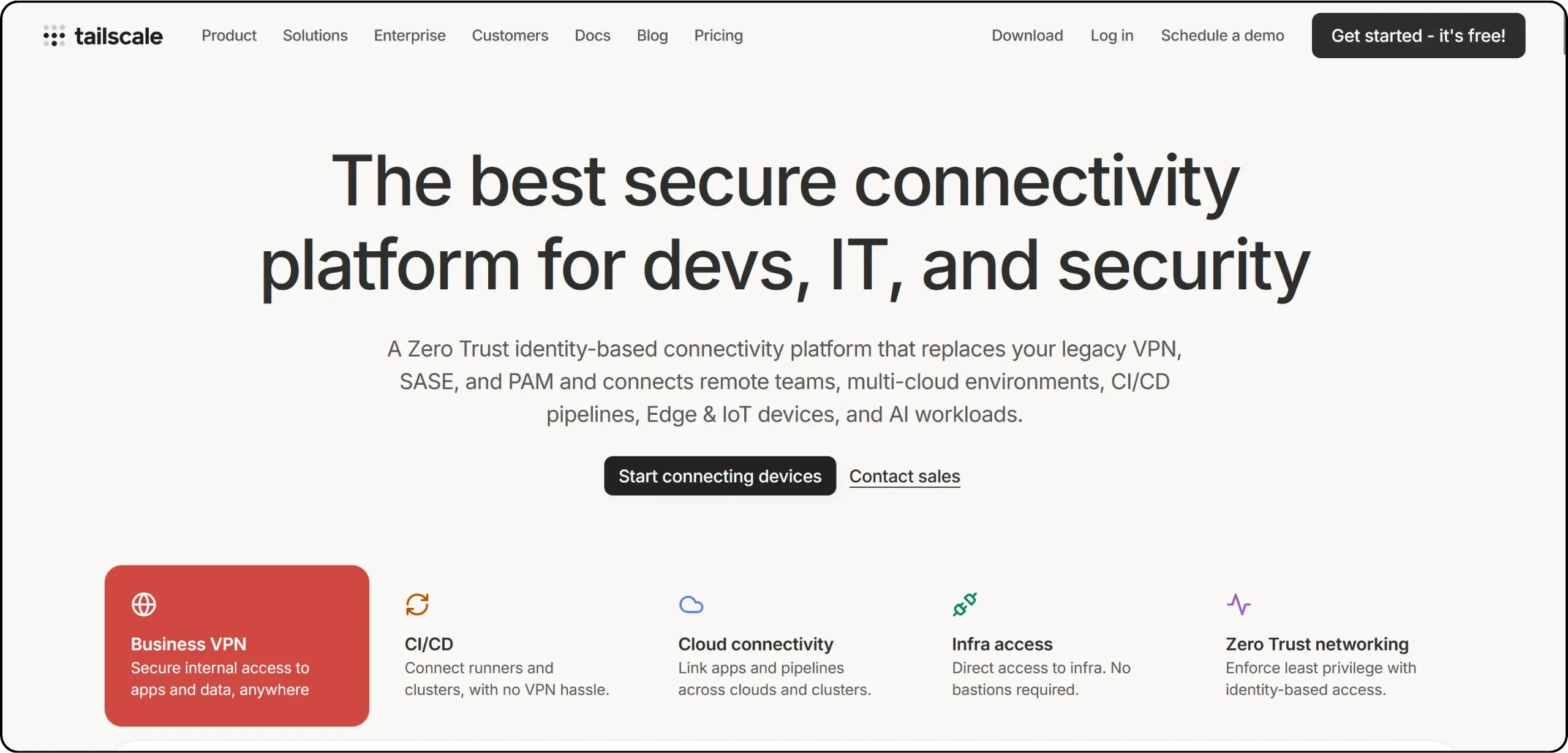
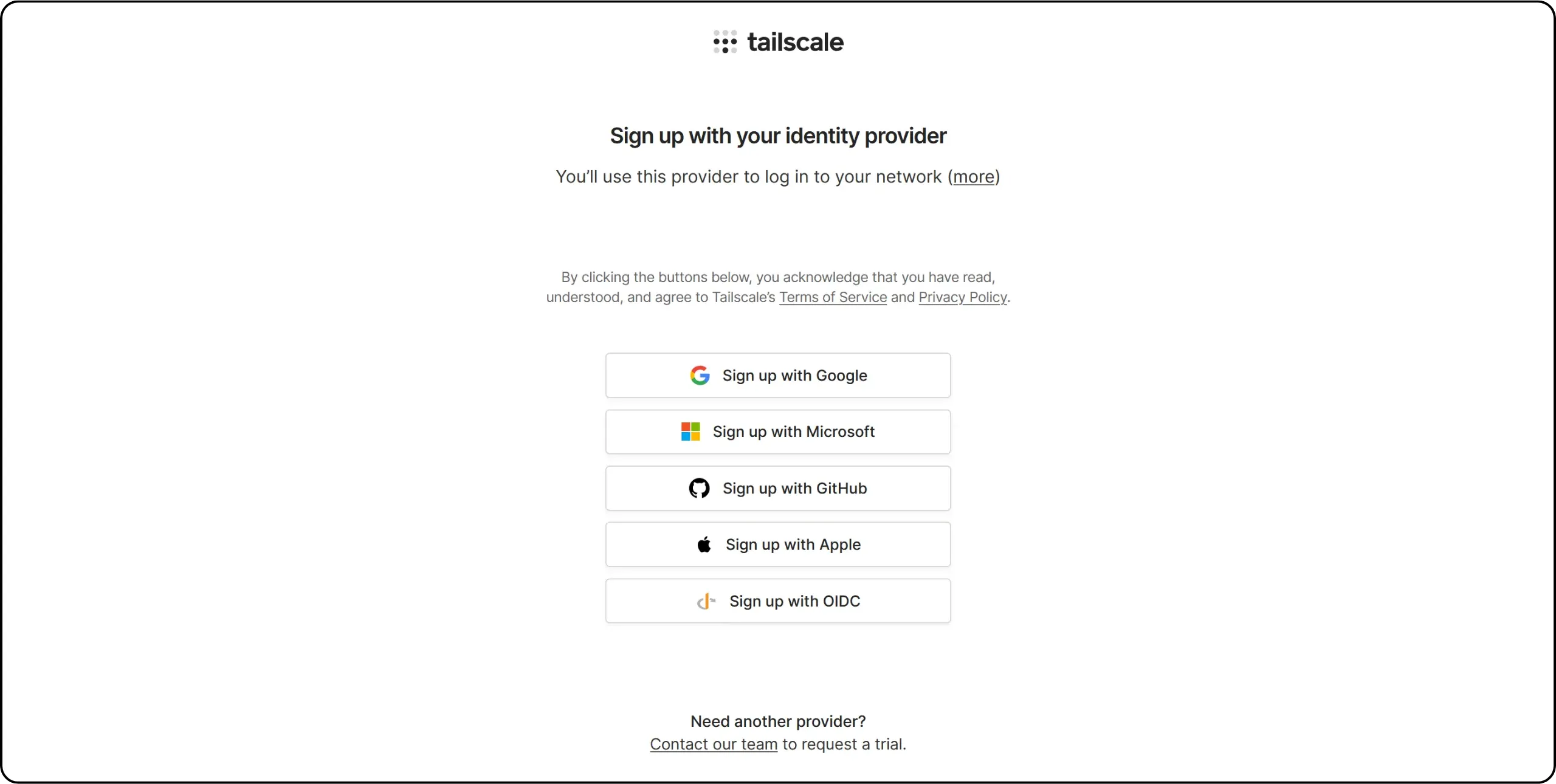
Then choose an identity provider for your Tailscale account. Personally, I used one of my GitHub accounts to log in.
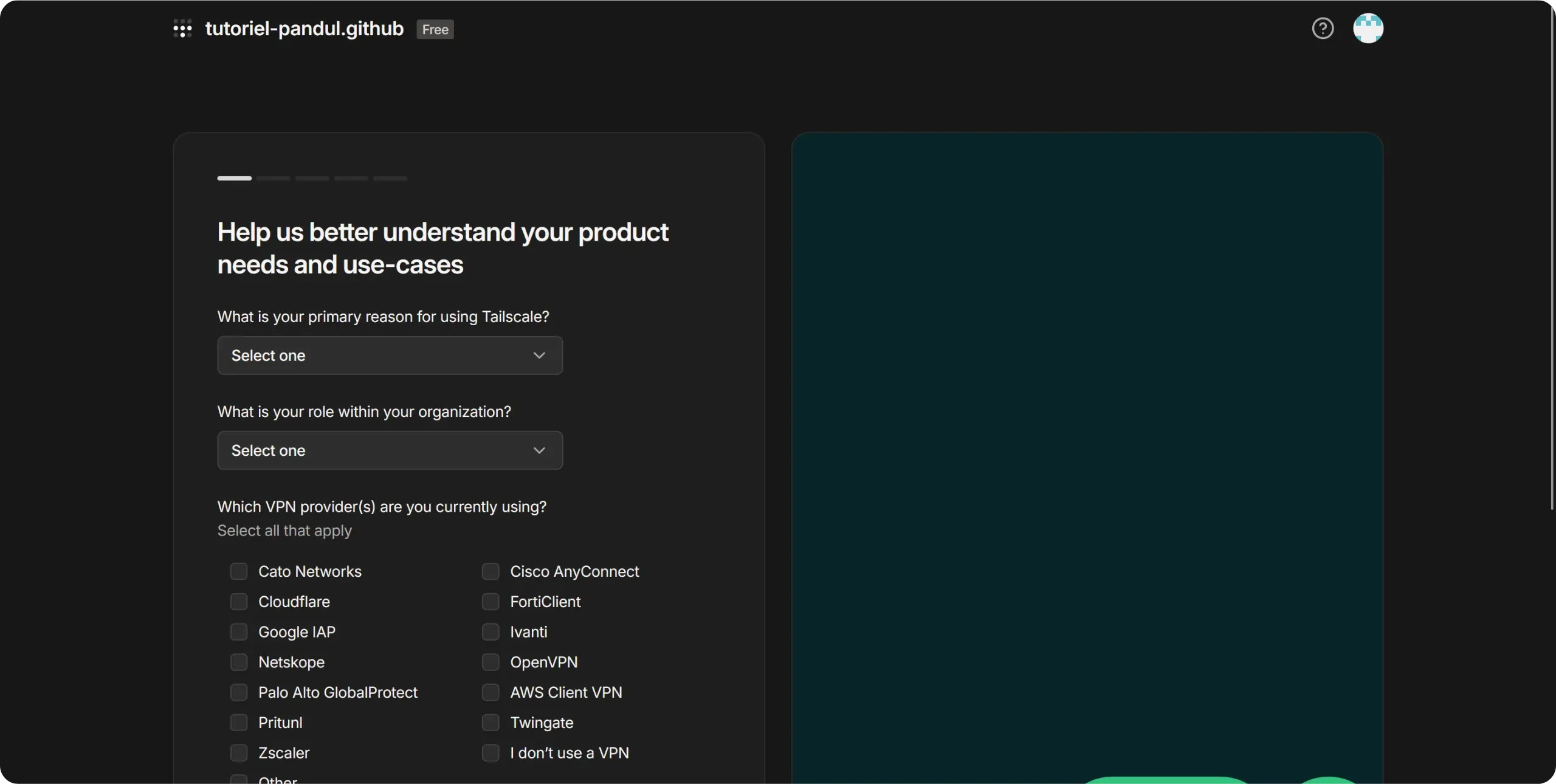
Once you've logged in, you'll be asked a few questions about your usage. Answer them briefly to continue.
Tailscale then offers to install a client on your machine. For the moment, that's not what we're interested in: go directly to Umbrel and install the Tailscale application from the App Store.
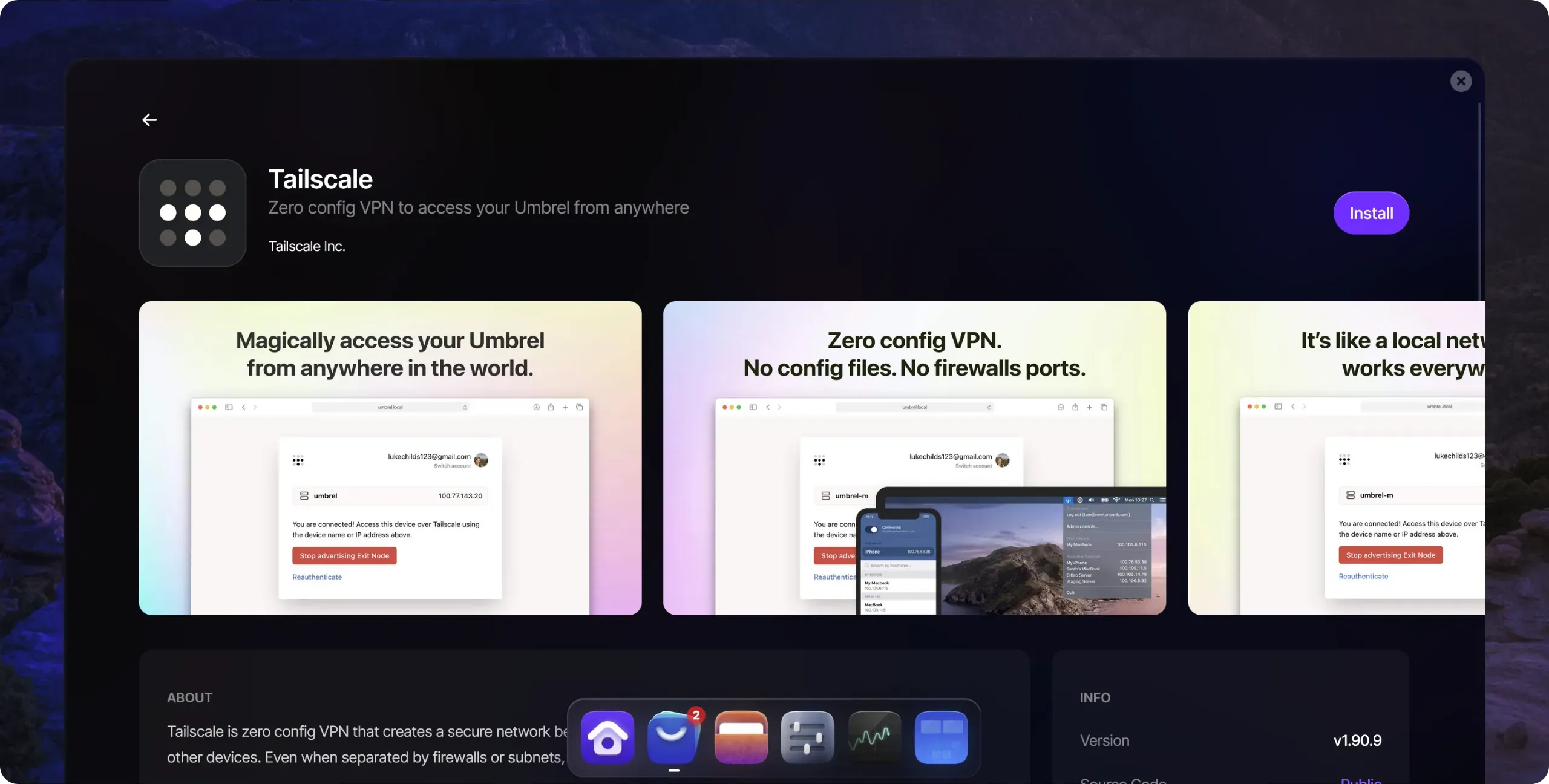
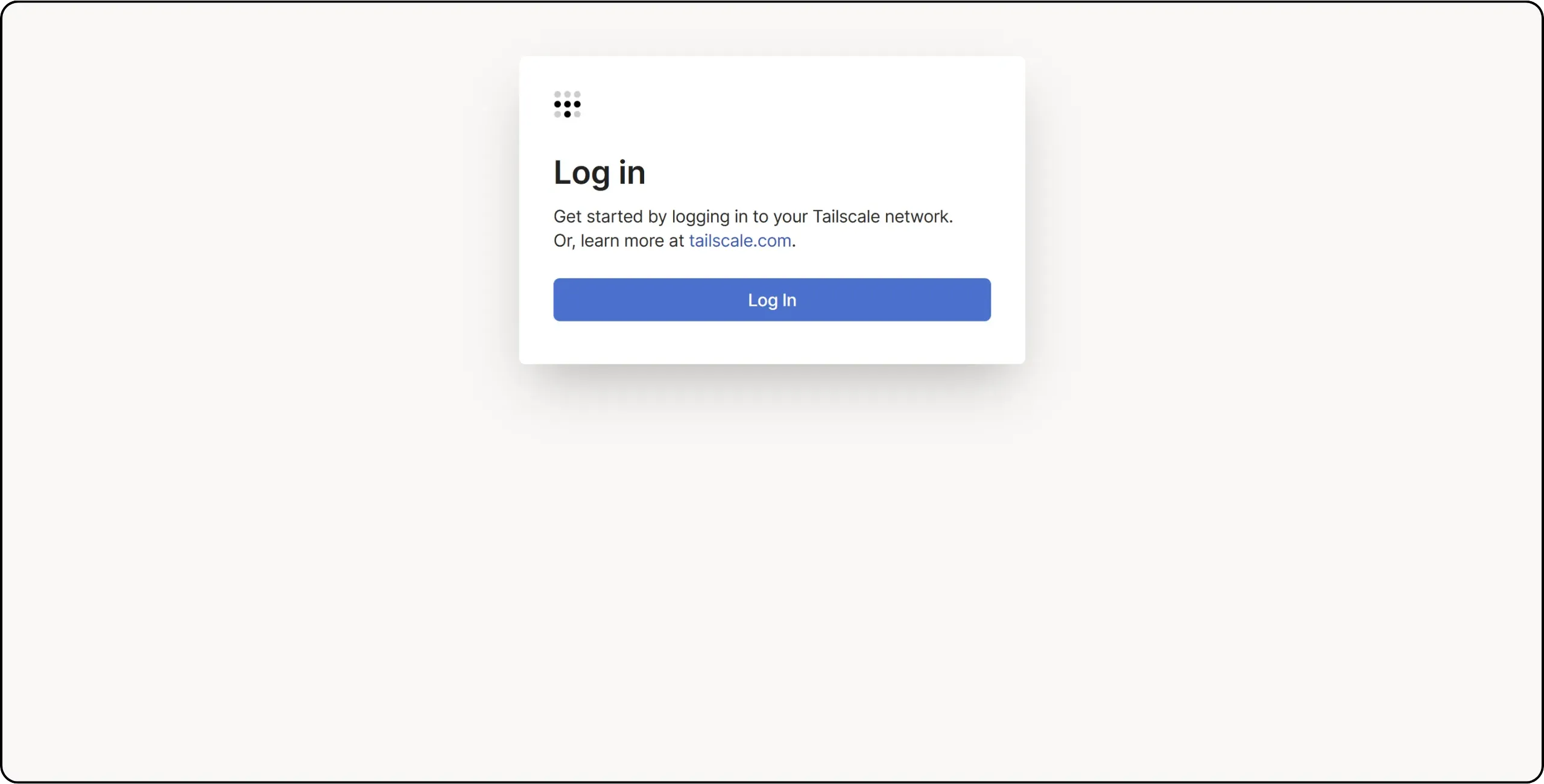
When the application opens, click on Log In, then follow the authentication process, using the same method as when you created your account.
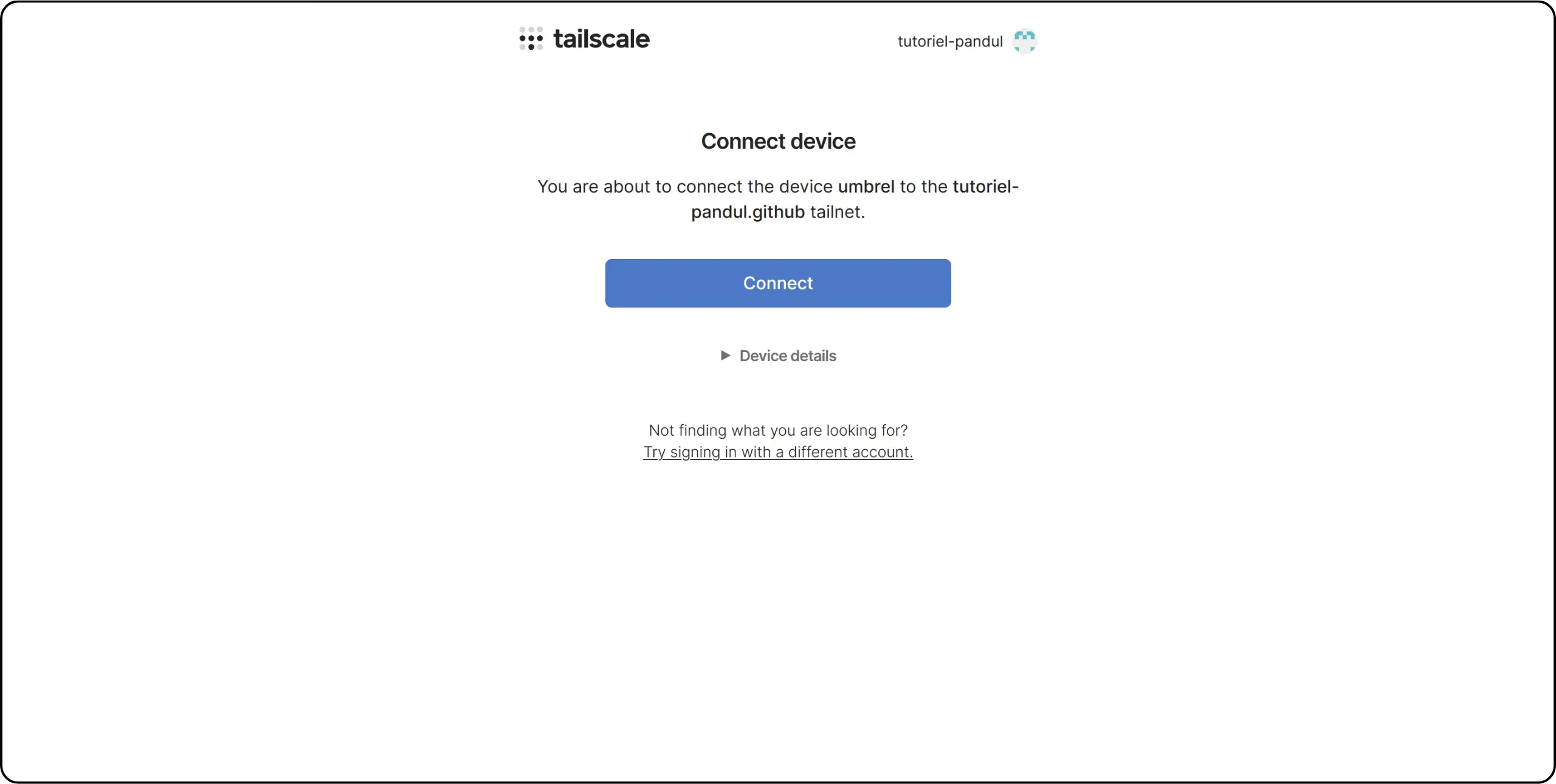
Click Connect to confirm. Your Umbrel is now connected to your VPN network.
Then download the Tailscale application onto your smartphone and log in using the same account. Please note: on Android, it's not possible to use two VPNs simultaneously. For Tailscale to work, you'll need to disable any other active VPN. What's more, every time you want to use your Lightning node via Zeus, you'll need to activate the Tailscale VPN, otherwise the connection won't be established.
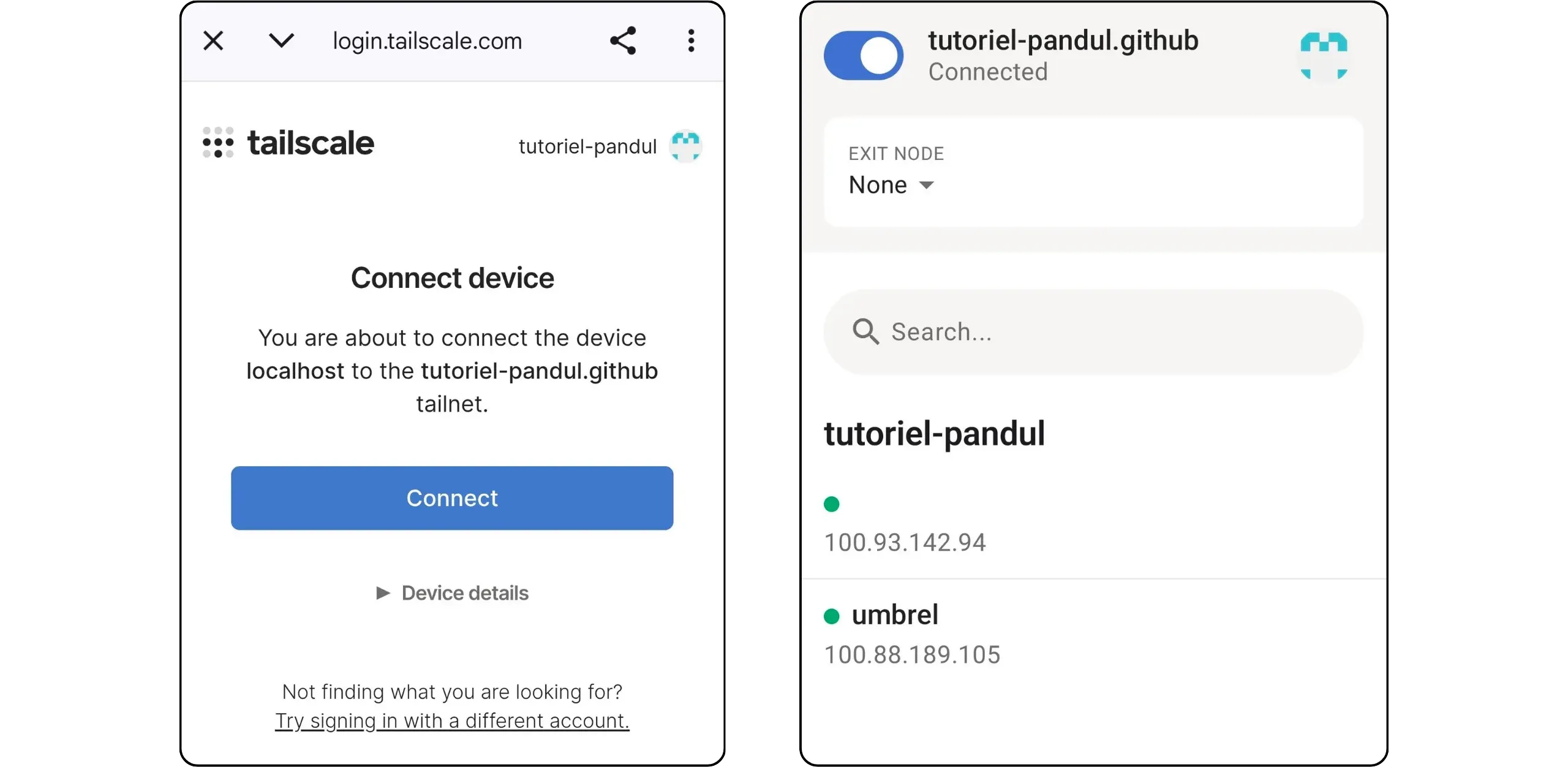
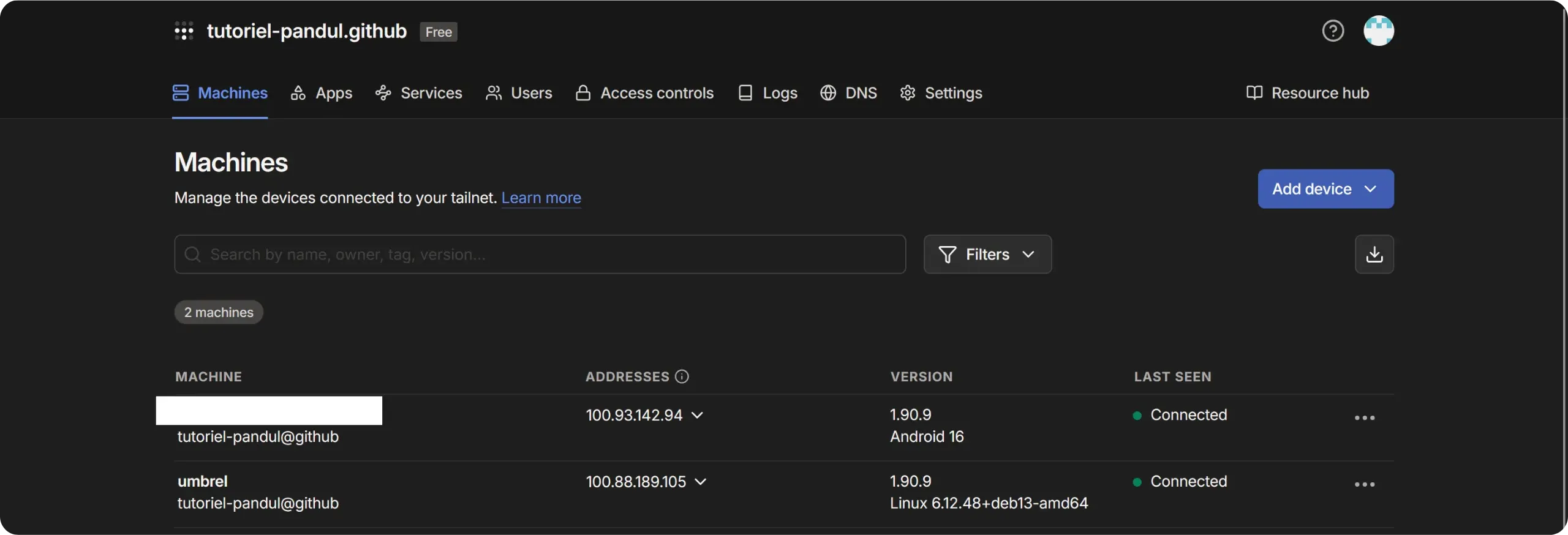
On the Tailscale site, now that at least two clients are connected, you can access the administration console with a list of all your devices connected to the network and their Tailscale IP addresses.
Connect Zeus
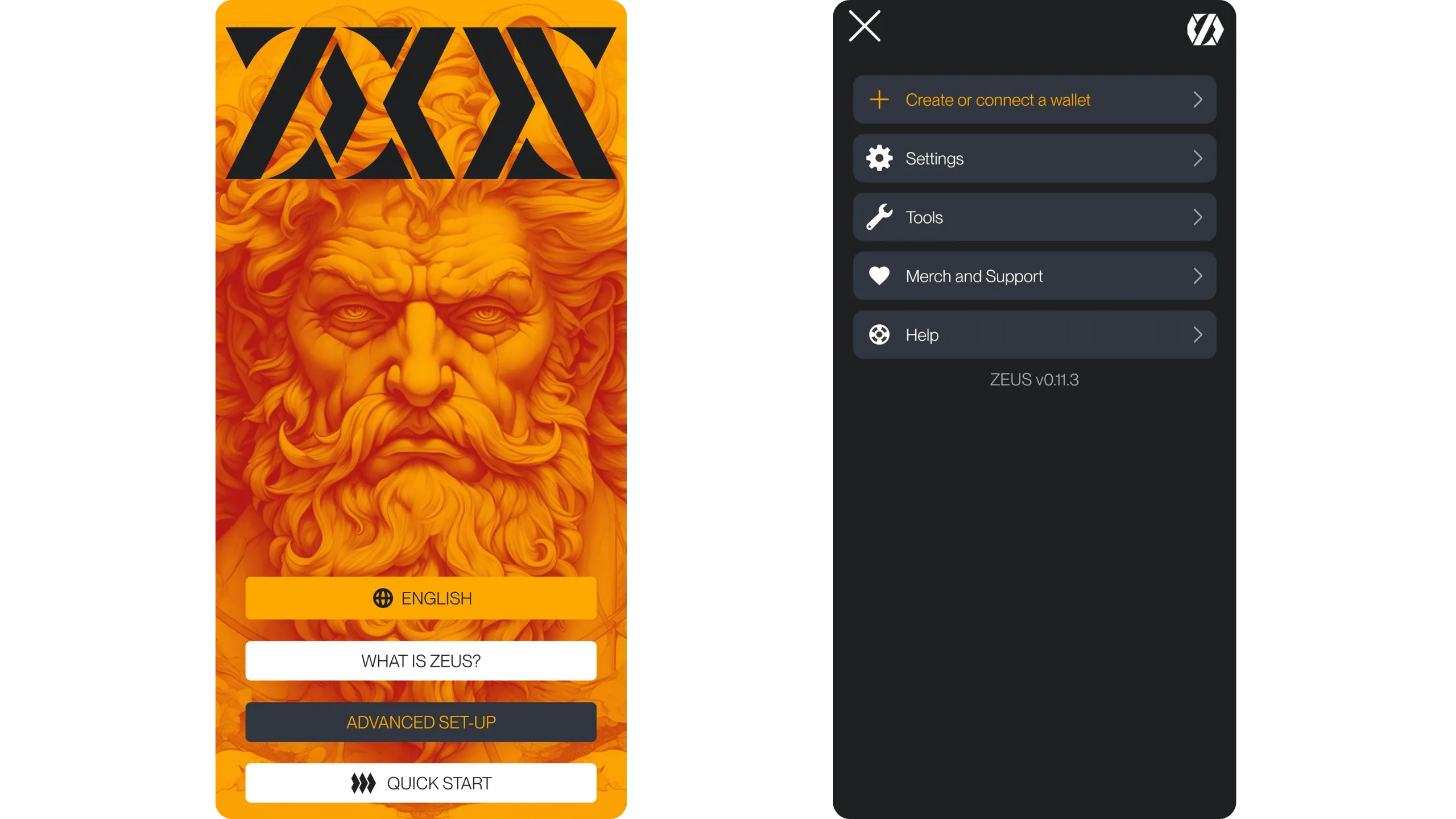
Install the Zeus application on your phone. When it opens, select Advanced Setup, then Create or connect a wallet.
In the Wallet interface section, choose LND (REST). Then enter the Tailscale address of your Umbrel, which you can find from your Tailscale dashboard or directly in the Tailscale application on Umbrel. For the port, enter 8080.
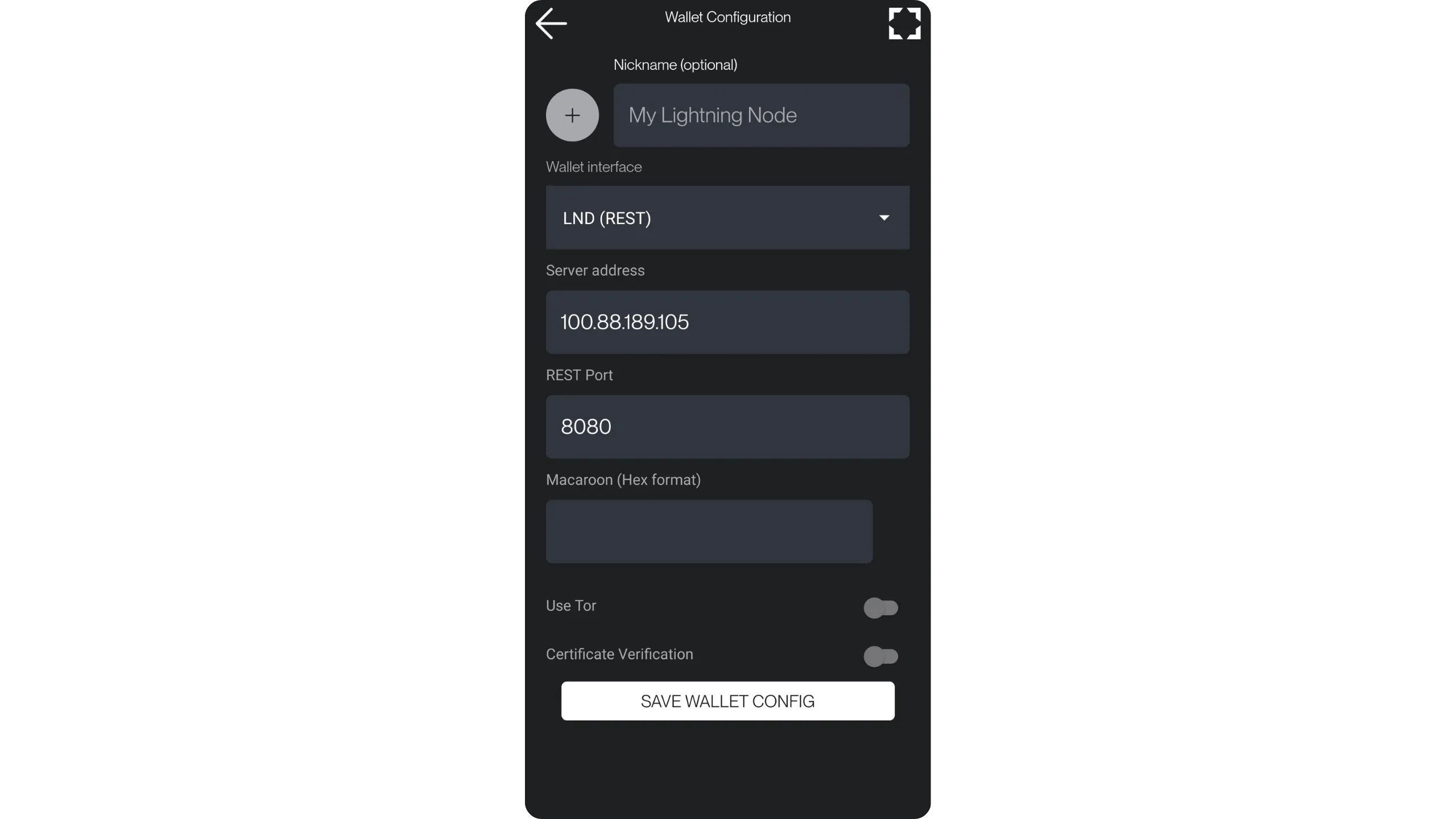
Zeus then asks you to provide a Macaroon. This is an authorization token which allows you to precisely define the rights granted to an application (in this case Zeus) to interact with your Lightning node. It is possible to generate a macaroon from ThunderHub, in the Tools menu, Bakery sub-menu, but for this purpose, the easiest way is to retrieve it directly from the Lightning Node application.
Click on the three small dots at the top right of the interface, then on Connect Wallet. Choose REST (Local Network). You will then be able to copy a macaroon with the appropriate rights.
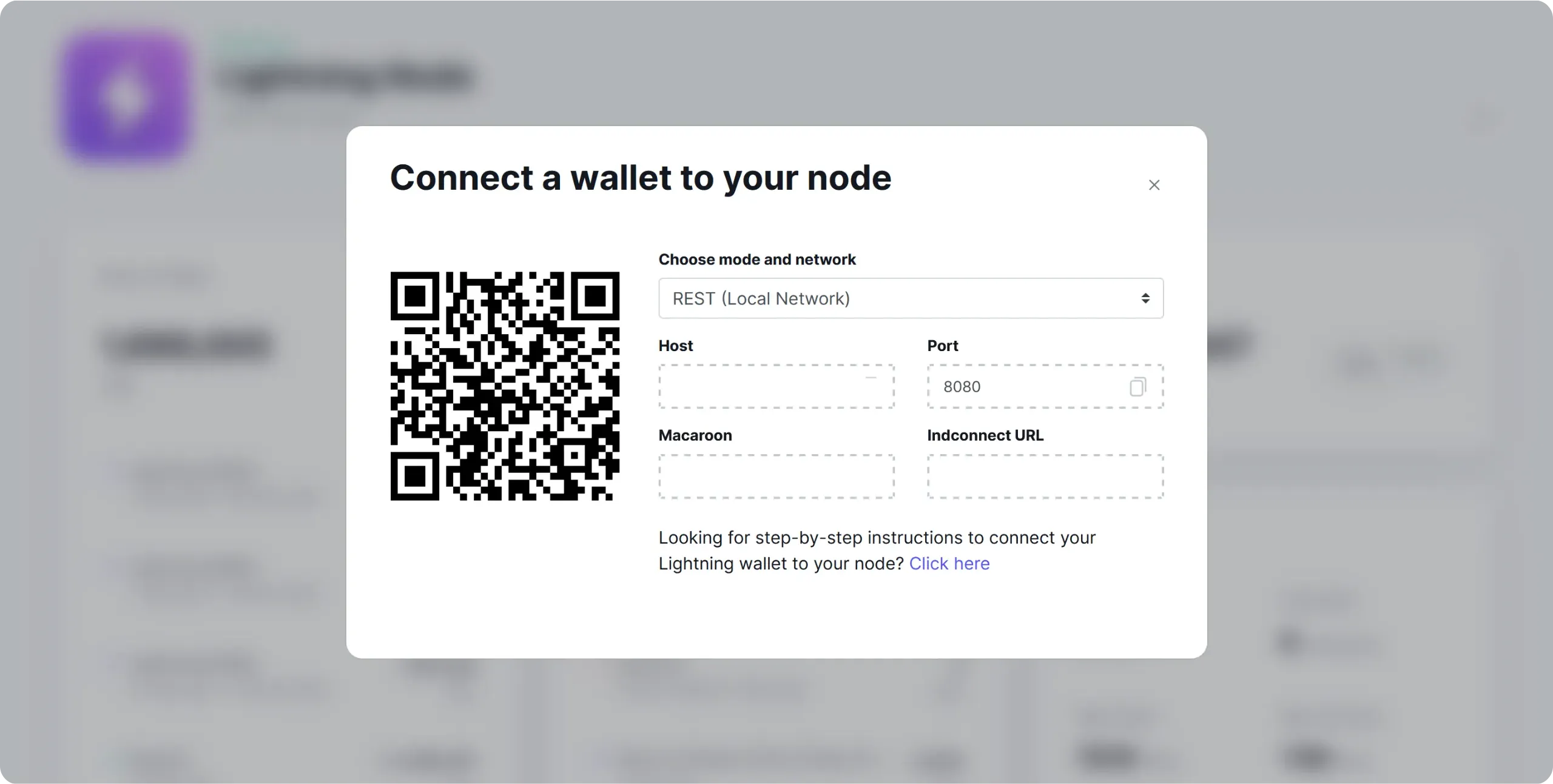
Paste it into the corresponding field in Zeus, then click on the SAVE WALLET CONFIG button.
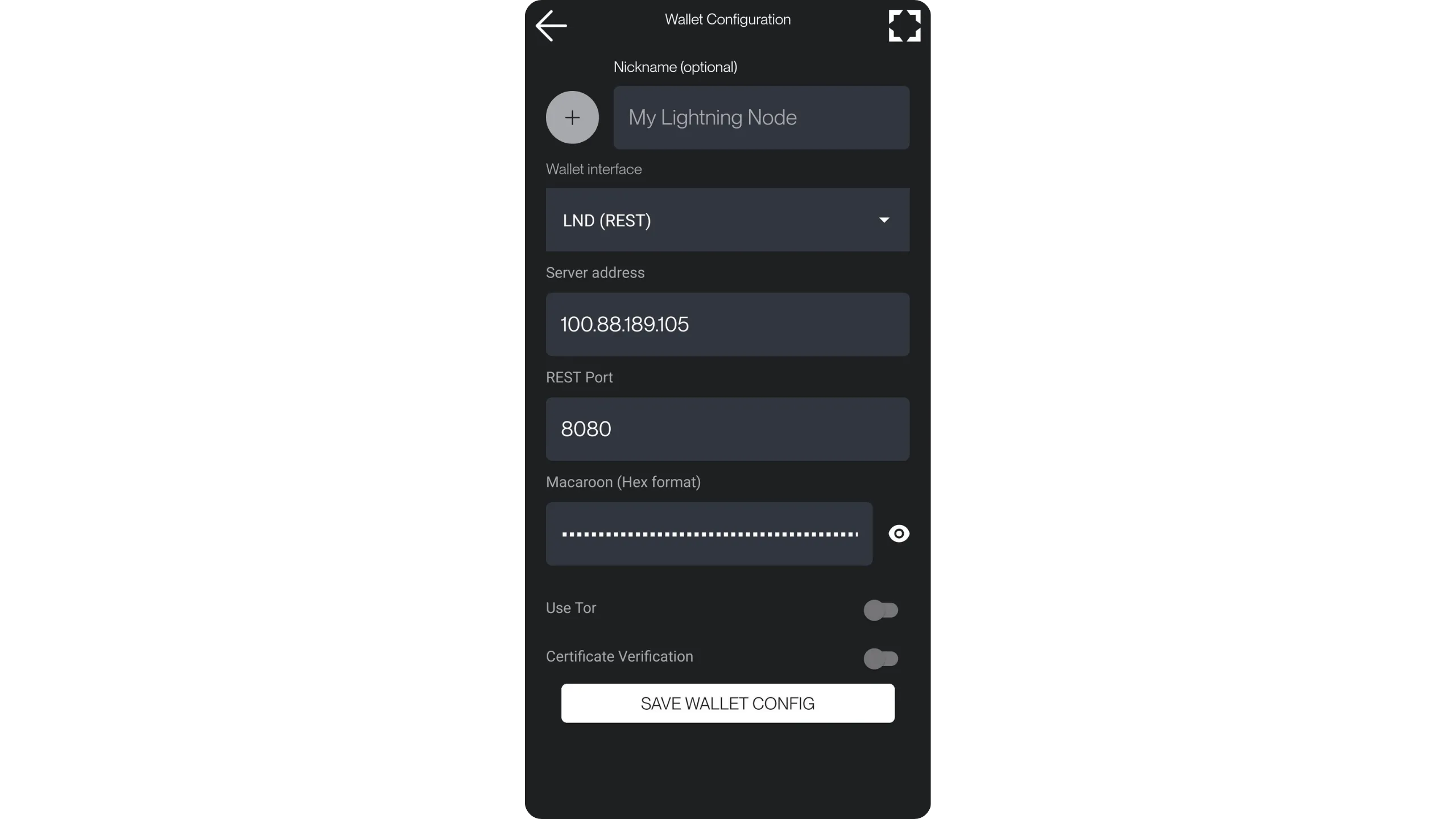
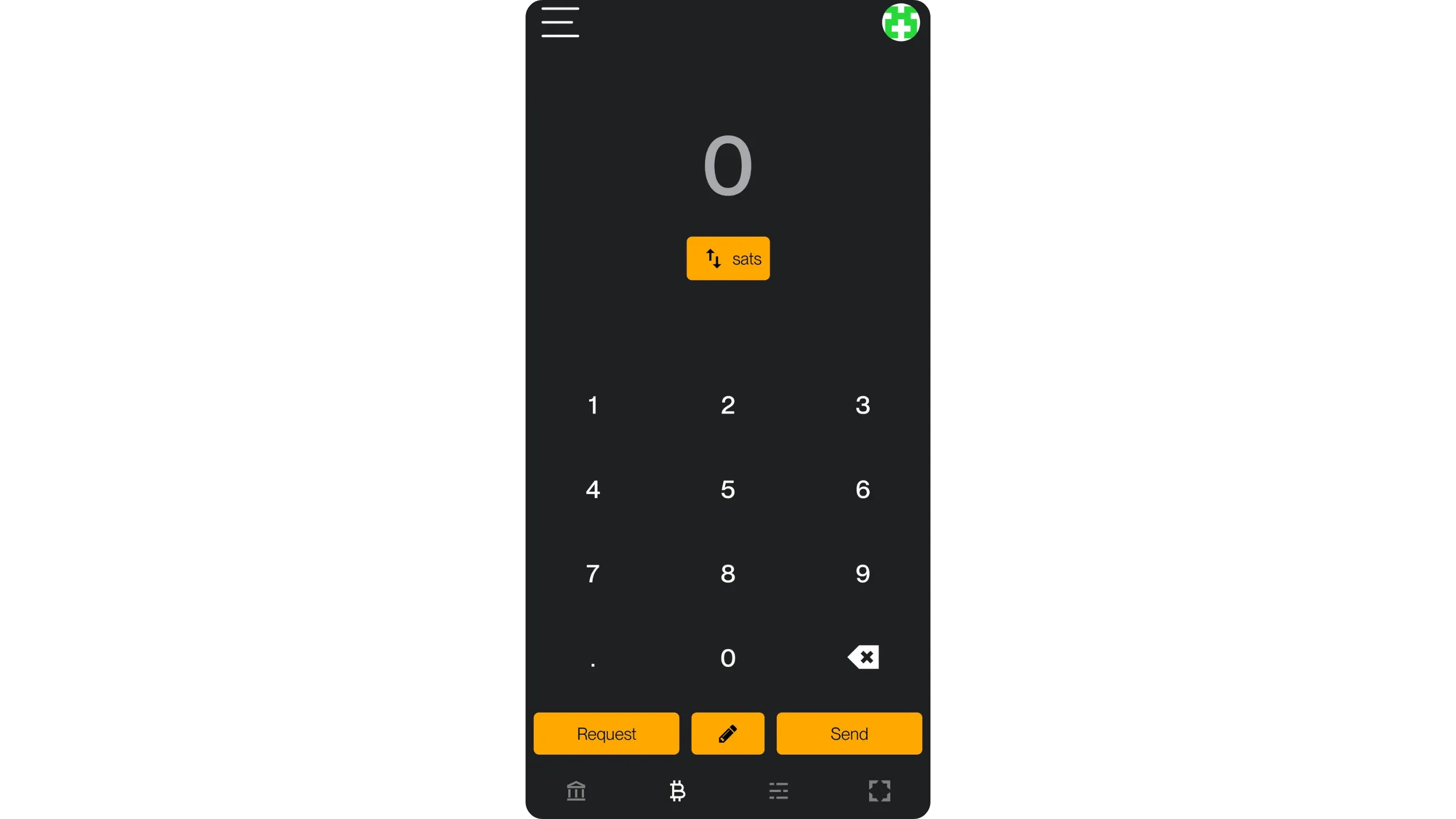
You can now access your Lightning node from the Zeus app. This means you can generate invoices to receive payments directly on your Lightning node from your smartphone, and also pay Lightning invoices wherever you are.
Tip: Tailscale is not limited to using your Lightning node remotely. It lets you access all your Umbrel's tools from other software, even remotely. For example, you can use the Tailscale IP address of your Umbrel to connect your Bitcoin node (via Electrs or Fulcrum) to Sparrow Wallet, without going through Tor. Once again, this avoids the slowness inherent in Tor. Simply install the Tailscale client on your computer and connect it to your network.
In the next chapter, we'll look at another, equally effective way of connecting a mobile client to your Lightning node: Nostr Wallet Connect. We'll be using a different application from Zeus (although Zeus is also compatible with NWC), namely Alby Go.